
Is your Instagram account as safe as it could be? Here's what every small business owner needs to know
If you've been putting in the work to build your Instagram account - showing up, creating content, growing your following, the last thing you want is to log in one day and find it's been hacked, compromised, or worse, locked you out completely.
I've been hearing so many stories like this lately, and it’s so much more common than people realise.
The good news is that a few simple tweaks to your security settings can make a huge difference. Use this as your checklist and work through it at your own pace - future you will be very pleased you did!
The essentials: set these up today
1. Turn on Two-Factor Authentication (2FA)
This is the single most important thing you can do. Two-factor authentication means that even if someone gets hold of your password, they still can't get in without a second verification step.
But remember to set it up via an authenticator app (like Google Authenticator or Authy) rather than SMS. Text messages can be intercepted, an authenticator app is a much more secure option.
2. Secure the email address linked to your account
Your email is essentially the back door to your Instagram. If someone can get into your inbox, they can reset your password and lock you out. Make sure your linked email account also has 2FA enabled and a strong password.
3. Have a look at which third-party apps have access to your account
Over time, you've probably connected various scheduling tools, apps or social media platforms to your Instagram. It's easy to forget about them. Go into your settings regularly and remove anything you no longer use - every connected app is a potential way to get hacked or compromised
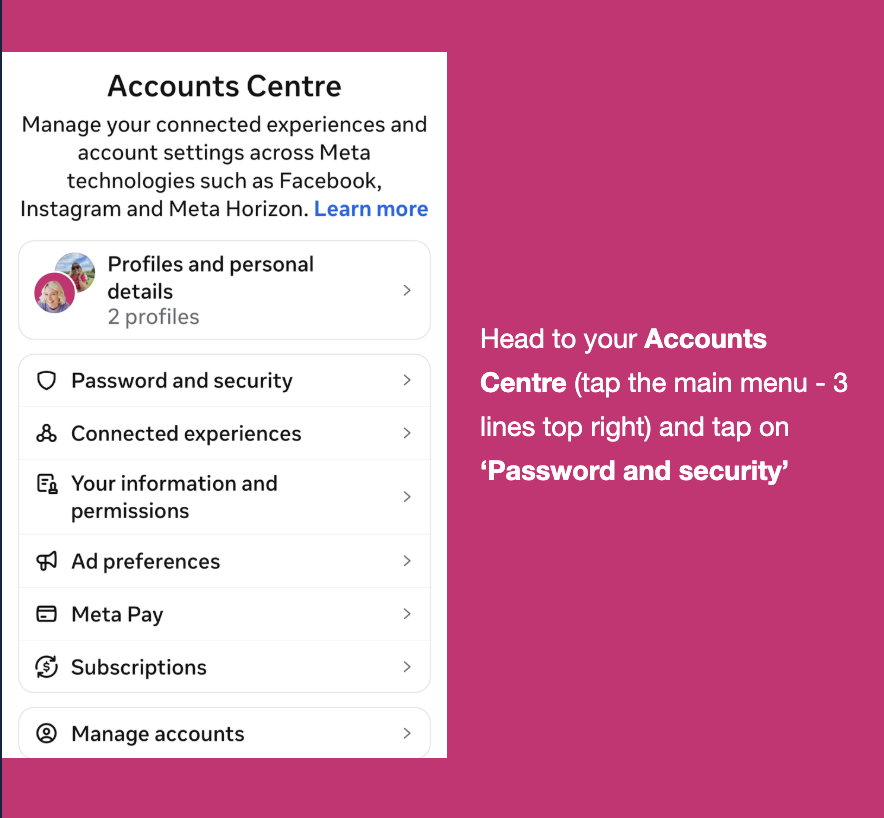
Go into your main settings (3 line ‘burger menu’ top right on your Instagram profile) and select Accounts Centre menu and choose Password and security
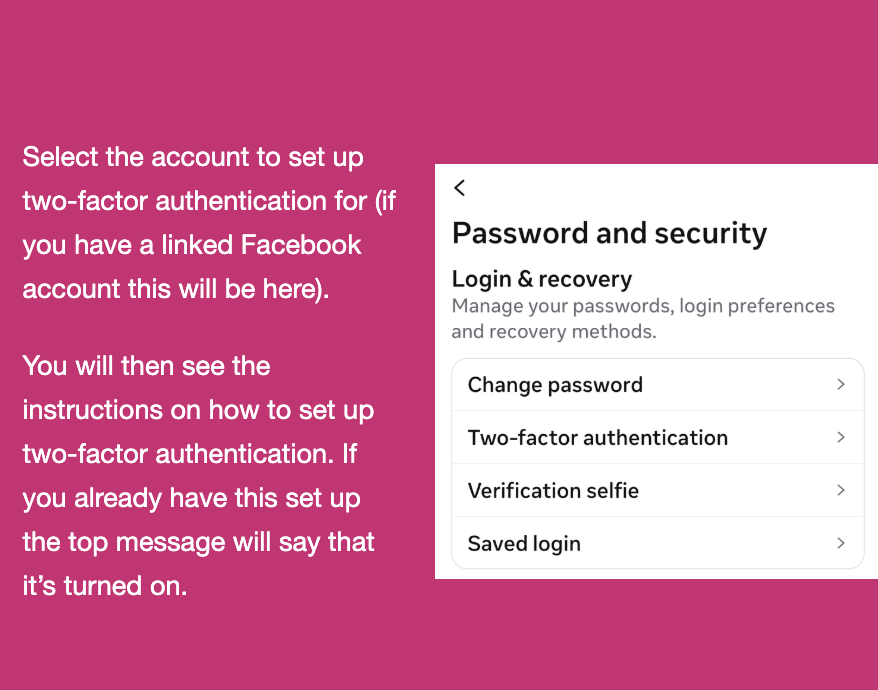
This is where you can set up your two-factor authentication
How to know if something's wrong…
4. Check your login activity
Instagram shows you every device and location that's currently logged into your account. Get into the habit of checking this regularly. To find it go on to Settings to security to login activity. If you spot anything you don't recognise, remove it immediately.
5. Turn on login alerts
Instagram can notify you if someone logs in from an unfamiliar device. Make sure this is switched on so you're the first to know if anything suspicious happens.
6. Watch for unrecognised activity
Posts, DMs, follows or likes you didn't make are a big red flag. If something looks off, act quickly. Remember to change your password, and check your login activity straight away.
Recovery & backup - be prepared just in case
7. Add both a backup email and a phone number
Having two ways to recover your account means you're much less likely to get completely locked out. Go into your settings and make sure both are added and up to date.
8. Save your 2FA backup codes
When you set up two-factor authentication, Instagram gives you a set of backup codes. Screenshot them and store them somewhere safe - NOT in your Instagram DMs! These are your lifeline if you ever lose access to your phone.
9. Keep your recovery info current
Changed your phone number? Got a new email address? Make sure you update your recovery details on Instagram too. Old contact info will majorly hinder you if you ever come across a problem.
Avoiding the common traps
10. Watch out for phishing messages
Those DMs and emails that say "Your account has been flagged" or "You've violated our community guidelines". They're almost always fake. Here's the key thing to remember: Instagram will never DM you. All genuine alerts from Instagram or Meta come through the app's settings only, not your inbox or DMs.
11. Never share your login details
Not with anyone, not even someone claiming to be from Instagram or Meta support. Legitimate platforms will never ask for your password.
12. Don't click suspicious links
Especially in DMs from accounts you don't know. If in doubt, don't click it.
Extra settings which are worth knowing about
13. Set up trusted contacts
Instagram lets you nominate trusted contacts who can help you recover your account if you get locked out. It is worth setting up as backup.
14. Check your connected Facebook account
If your Instagram is linked to Facebook, the security of that account matters just as much. Make sure it's equally as well protected.
15. Use the 'Emails from Instagram' feature
If you go to Settings then security, you can see every email that Meta has officially sent you. This is really handy for spotting fake emails. Remember - If it's not in this list, it didn't come from Instagram.
Final thoughts…
Just remember - none of this needs to take long. Most of these steps can be done in under 20 minutes. Just knowing your account is protected and secure will lift a massive load of your back.
Just setting aside some time this week to work through the list will make you feel 100 times better and less stressed.
Want more practical Instagram tips like this delivered straight to your inbox every month? Sign up for The Social - it's free!
